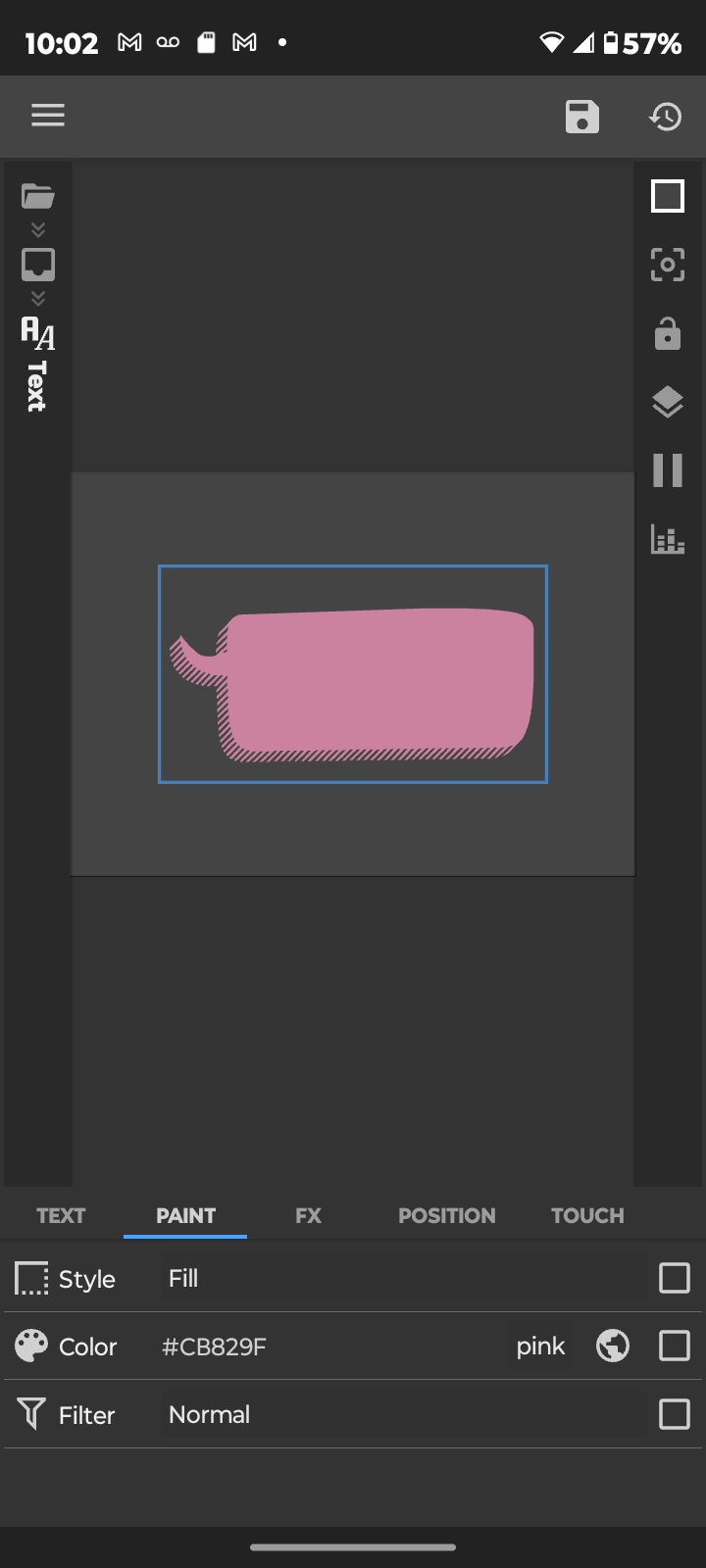
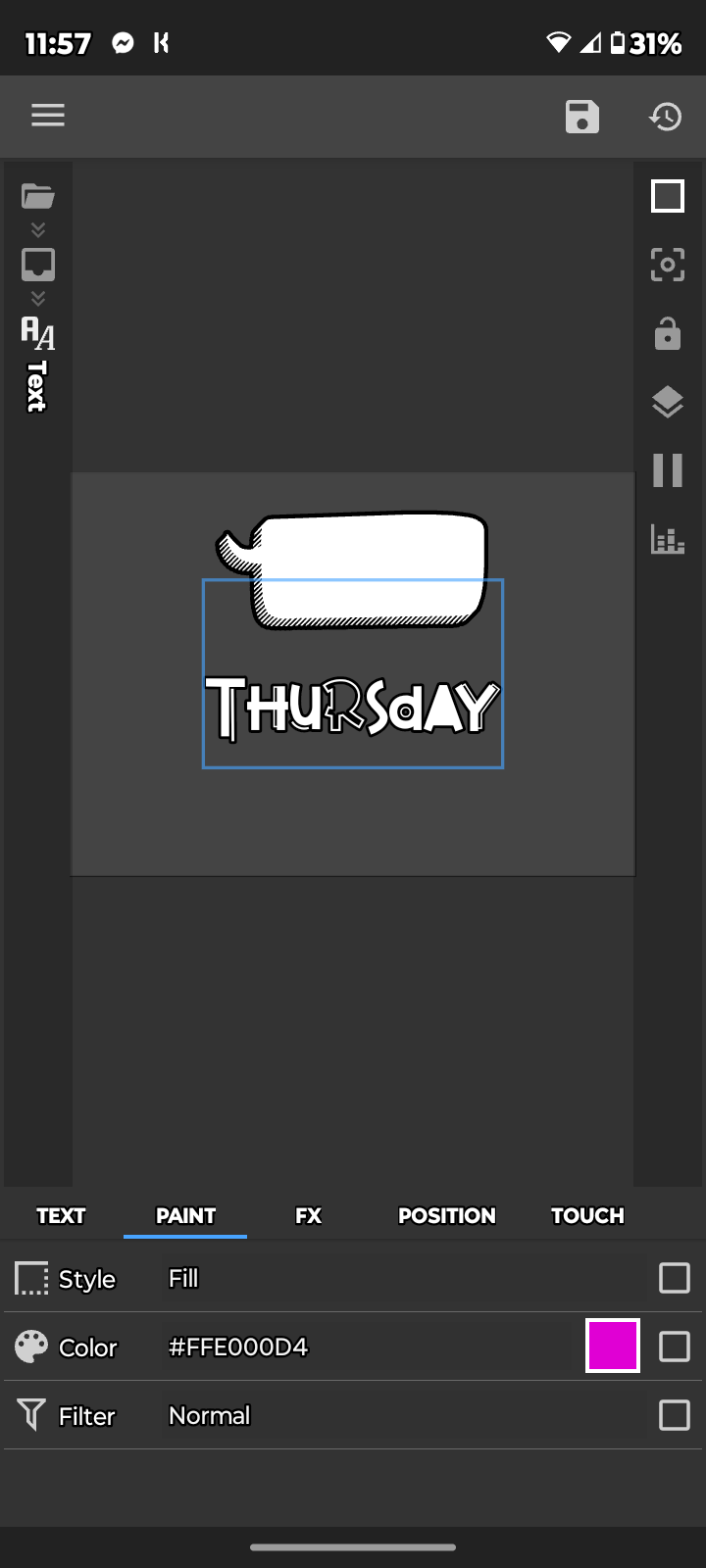
When I got to change the color of my text nothing happens it just stays white. I don’t know if the fact that I’m using a global color is the problem (I don’t know why it would me, it’s never been a problem before now)
Could you please provide two screenshots?
The Globals tab showing the color variable you are using.
The Text element settings (under the ‘Paint’ tab) where the color is linked to that Global.
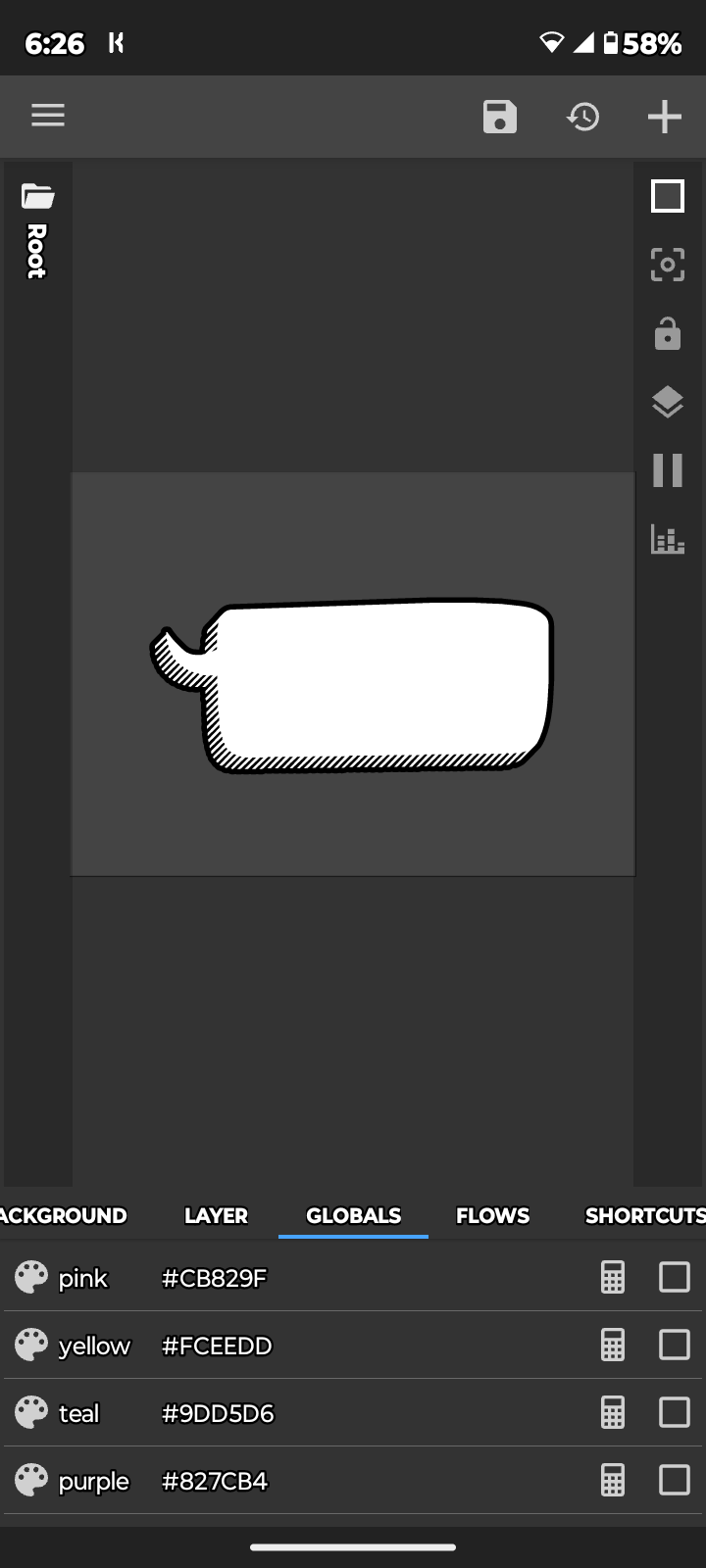
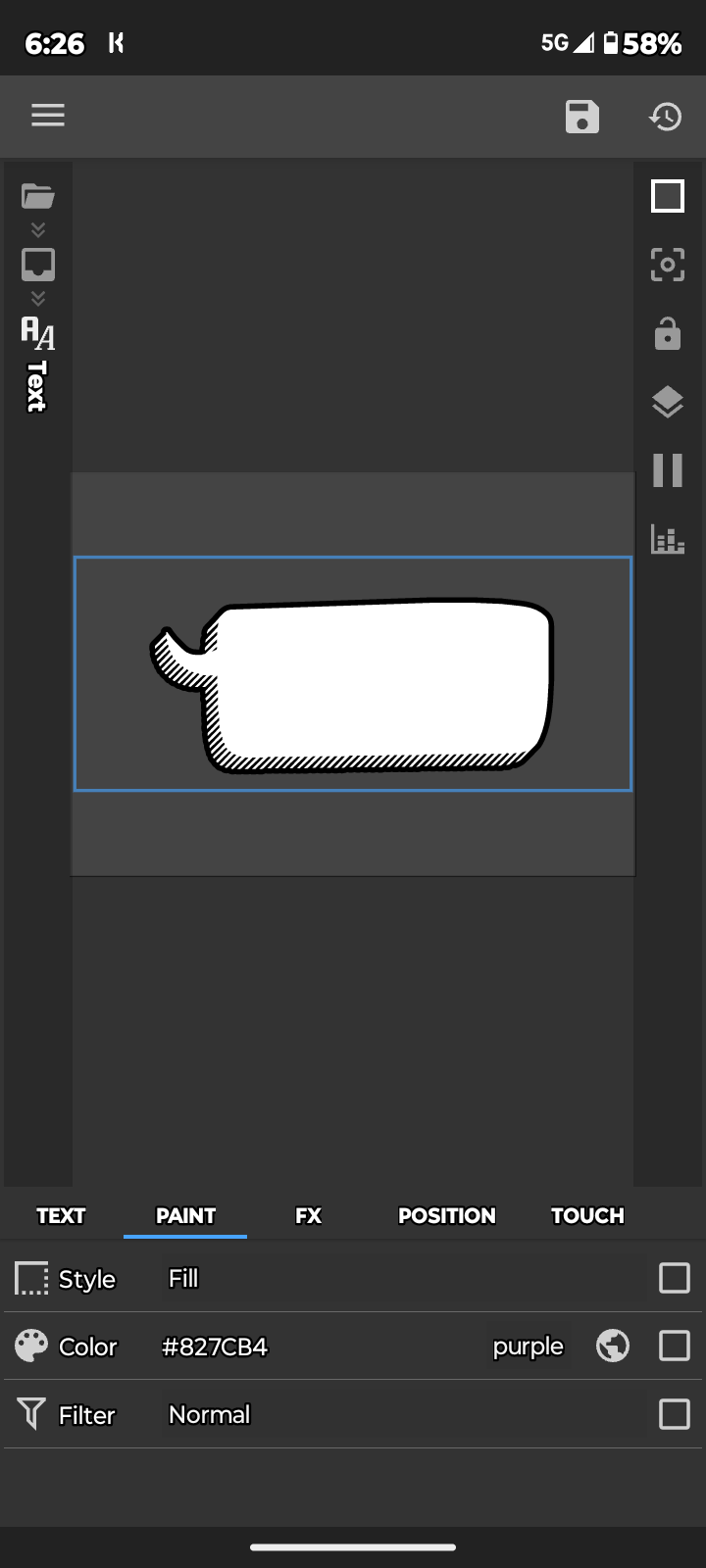
Something tells me the problem lies within this unusual custom font you are using. To rule out any issues with Globals, please try this test:
Go to the Paint tab and manually pick a basic color (like bright Red) from the color picker, bypassing the Global entirely.
Does the text actually change color, or does it stay exactly the same?
Please let me know the result.
Hi @skylarsmom07 ,
I think I found the solution for your problem, here it is:
Every Color global variable should not be set as formula.
Then use the purple color by setting the Color option in the Paint tab of the text, set it as formula instead of global.
I hope this would help.


Ive tried that way as well. With the same outcome.
Hi @skylarsmom07 ,
Try to use base or default font.
I tried on my KLWP (it should work on KWGT as well) and the text color can be changed.
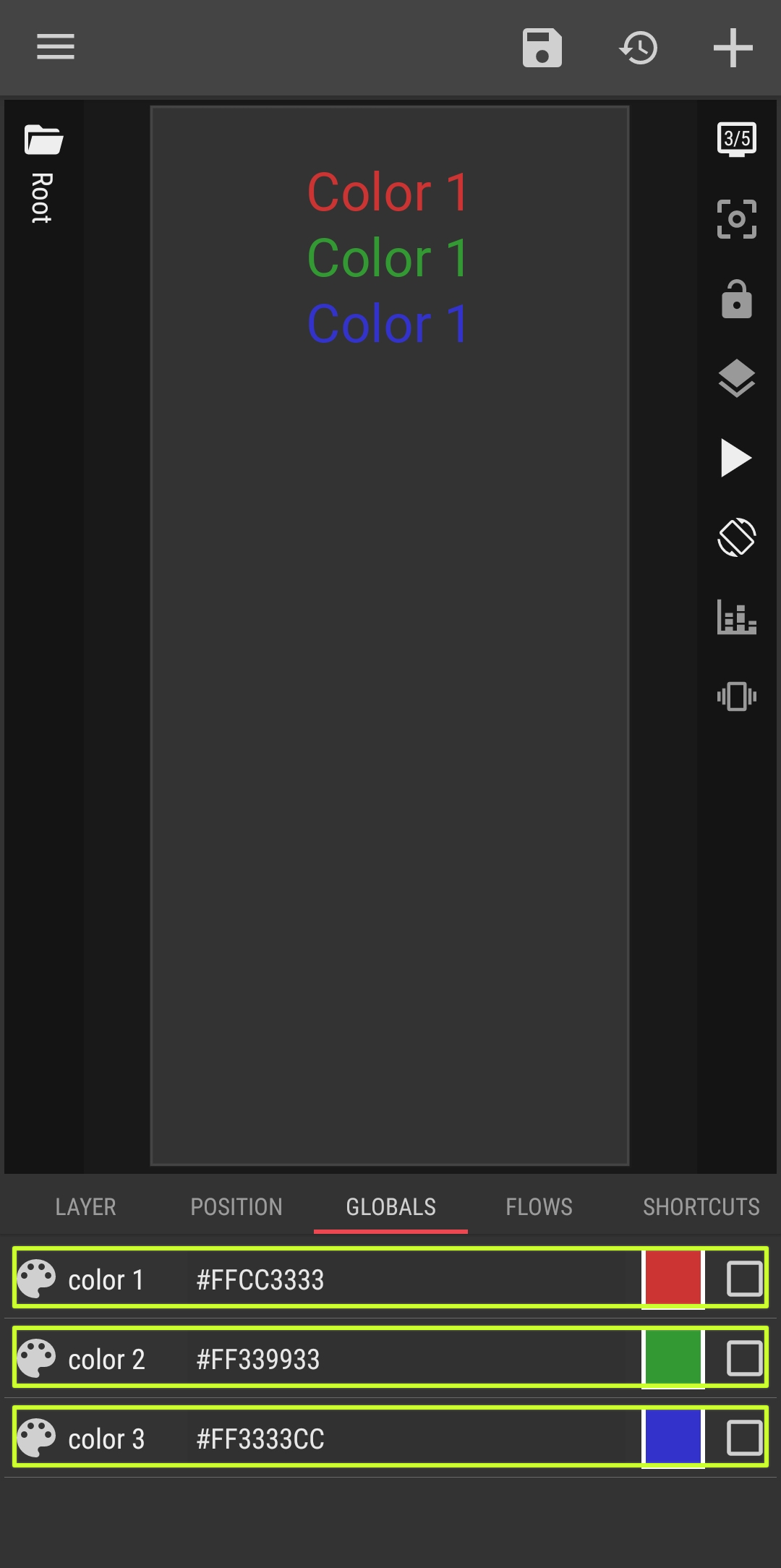
Global variables: Color
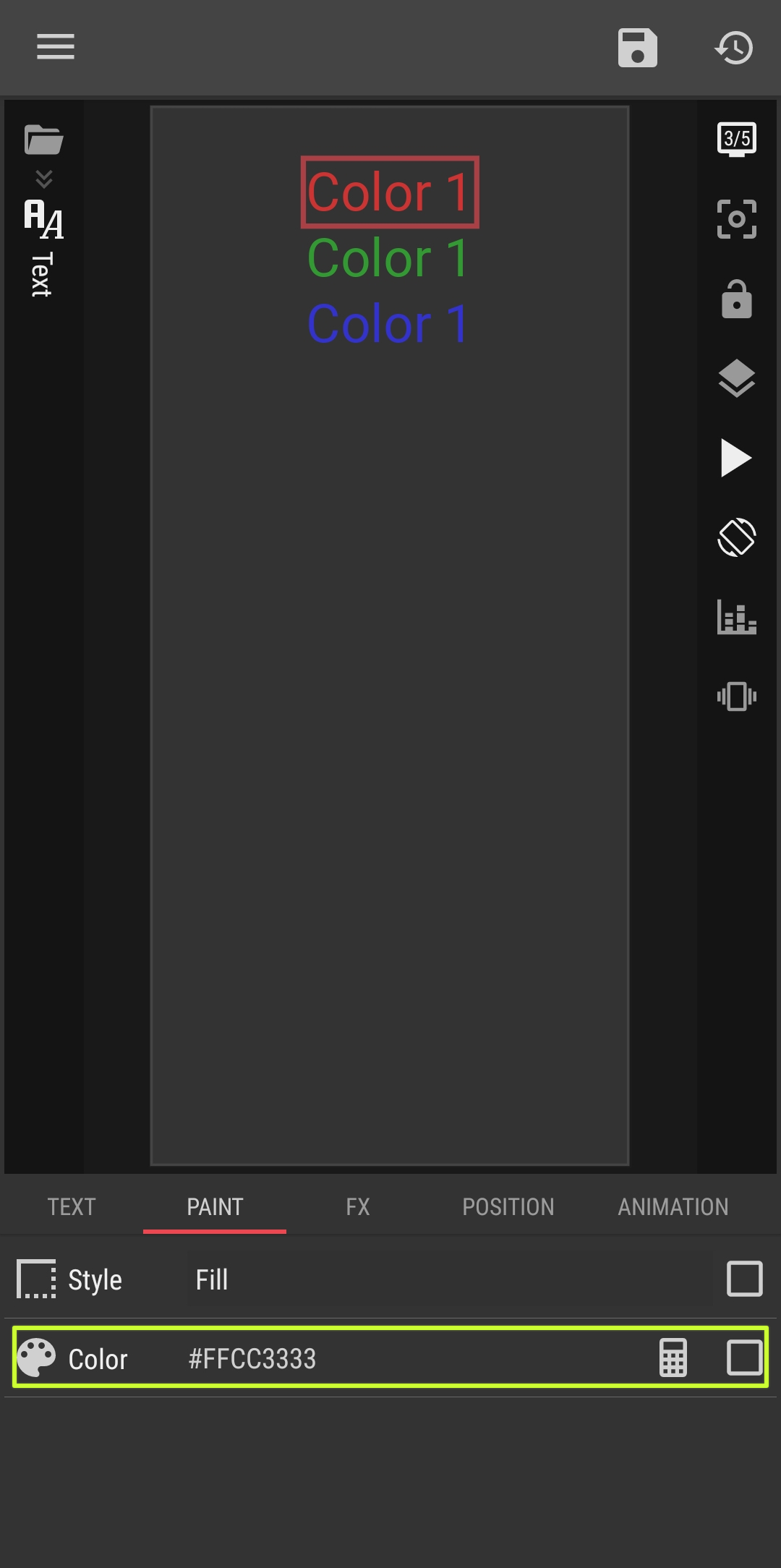
Set the Color option as formula.
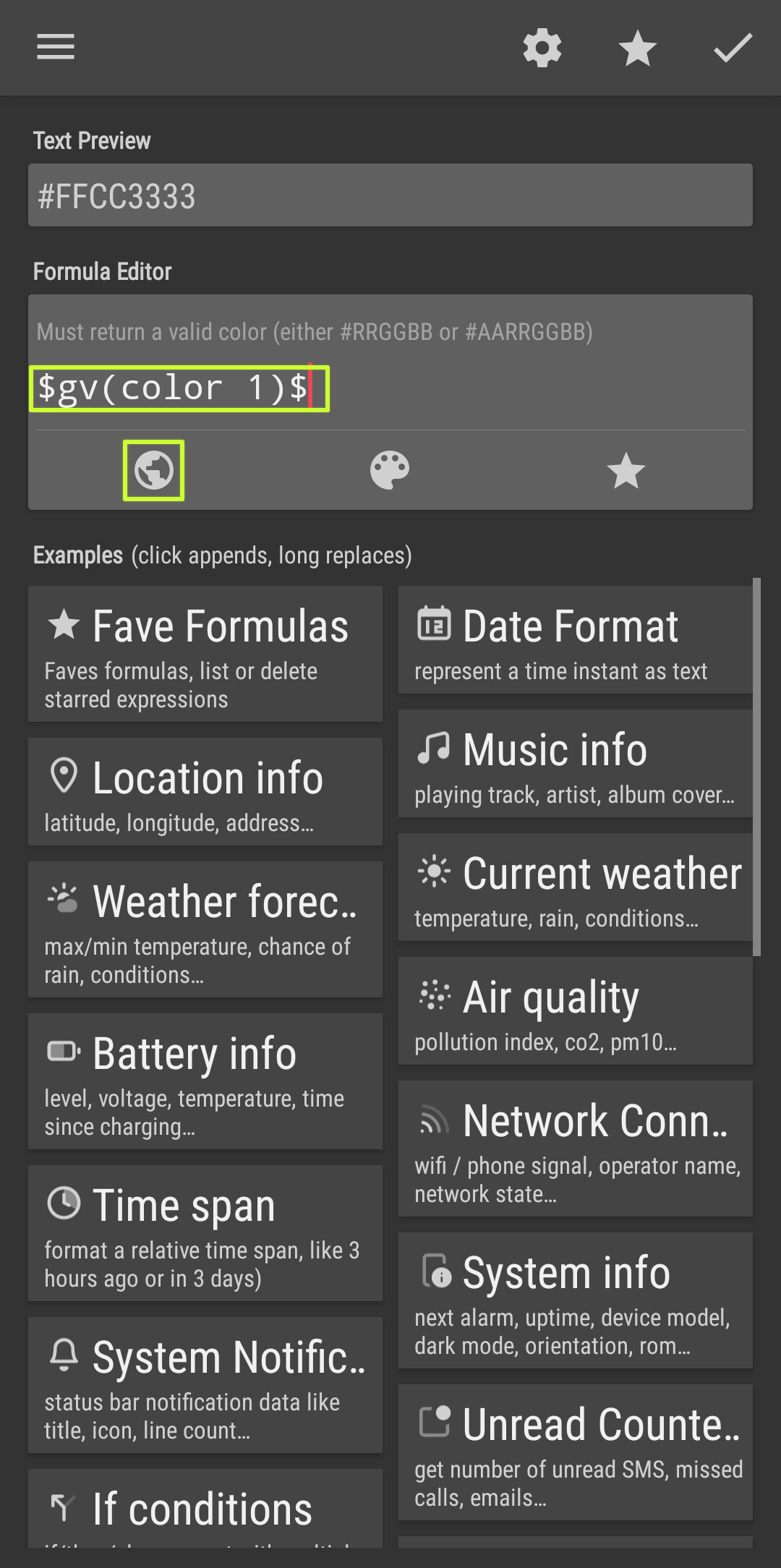
Choose the global variable to use.
I hope this would help.
Please do this exact test to confirm:
Create a brand new Text element.
Leave the font as the default Roboto (don’t change it to anything fancy).
Now try to change the color in the Paint tab.
I am 100% sure it will work perfectly with Roboto. The issue isn’t Kustom or your Globals—the issue is the specific custom fonts you are choosing.
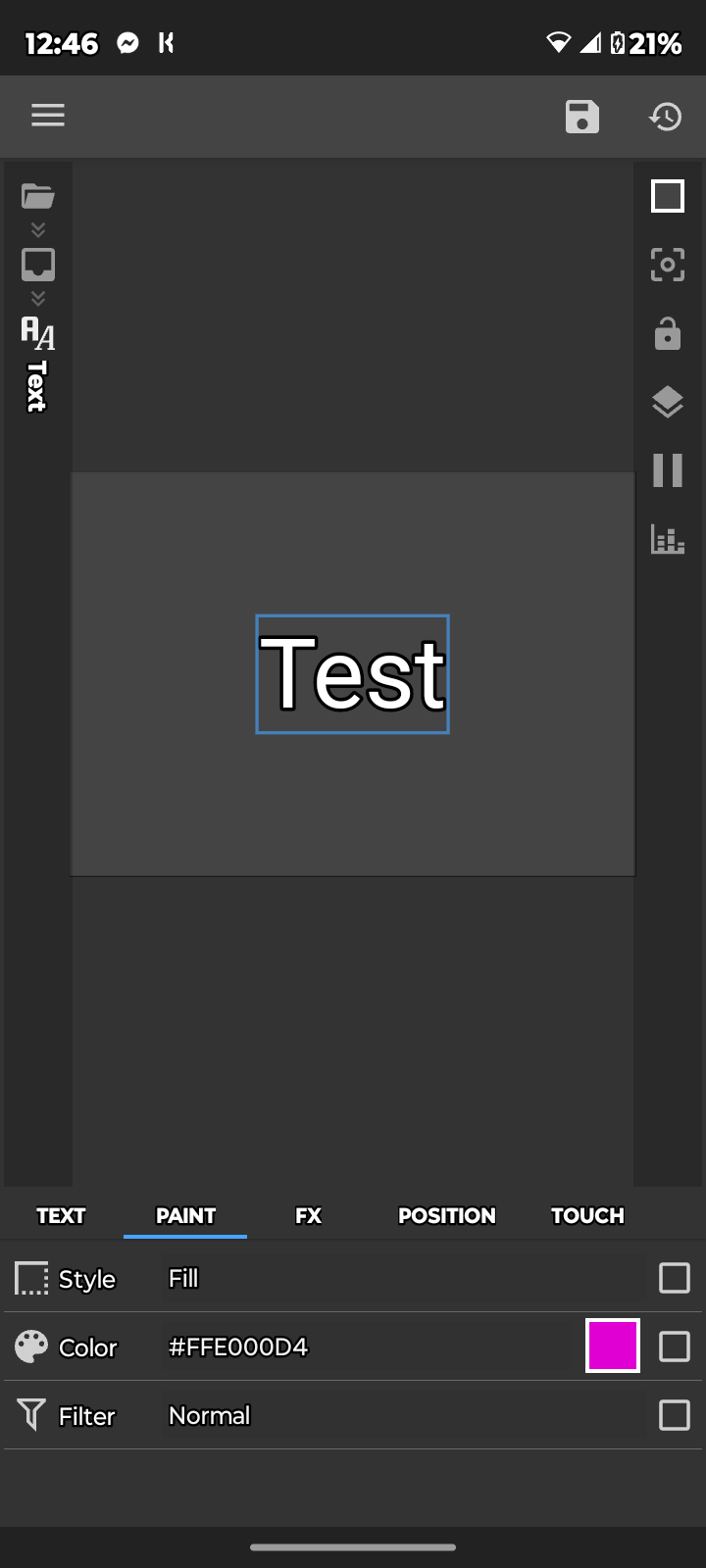
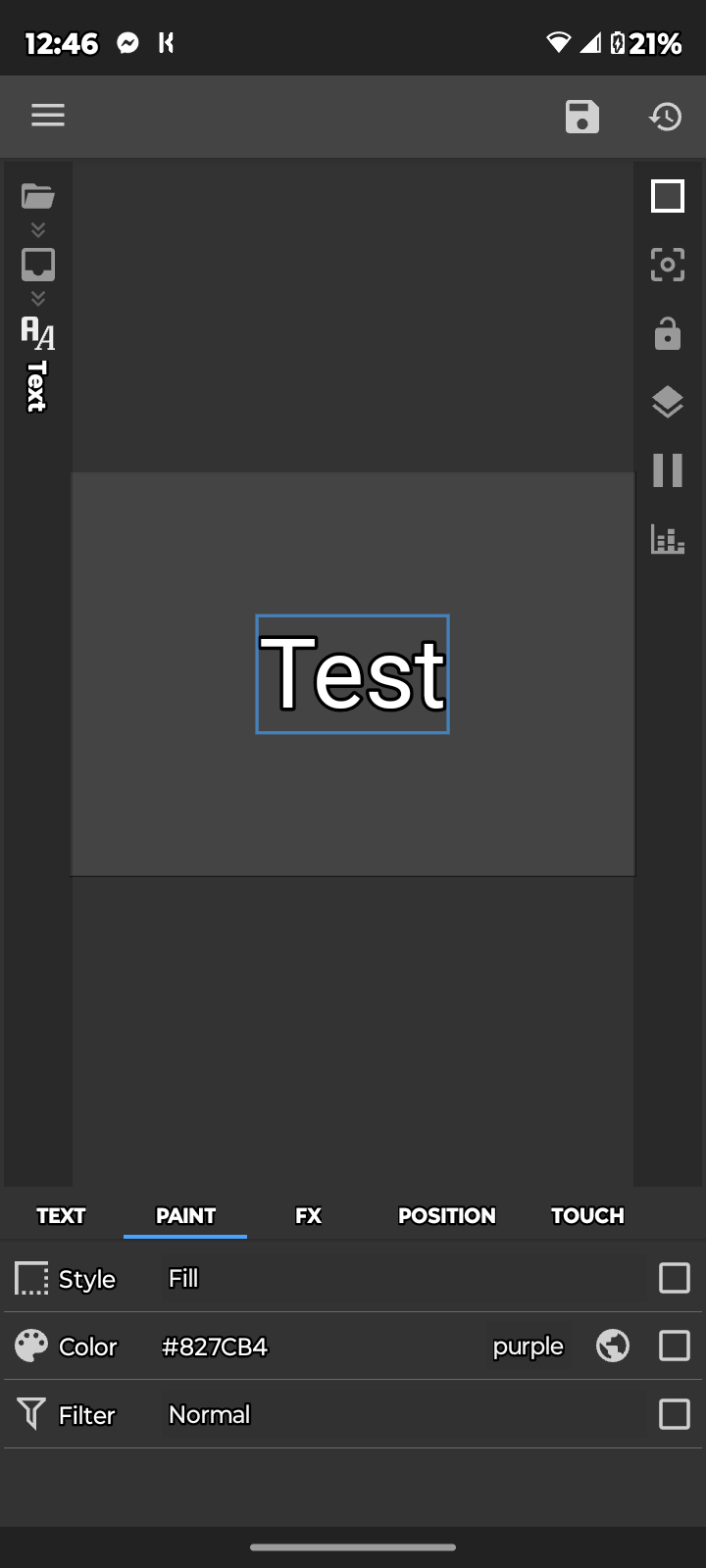
Okay, I get it. Then try the this steps.
Clear Cache: Go to your phone’s Settings → Apps → KLWP (or KWGT) → Storage → Clear Cache. (Do NOT clear data unless you have backups of your presets).
Restart your phone: This is mandatory to clear any stuck background rendering processes.
Create an entirely empty preset/widget.
Add a single Text element directly into the Root.
Do NOT change the font (keep Roboto).
Do NOT apply any filters, globals, or FX.
Go to the Paint tab and try to change the color manually.
Do you use any apps that maybe set and/or customize system text?
IMO, it looks like whatever method you use does not work and it would be better to check other applications that might be running and overide the text color.
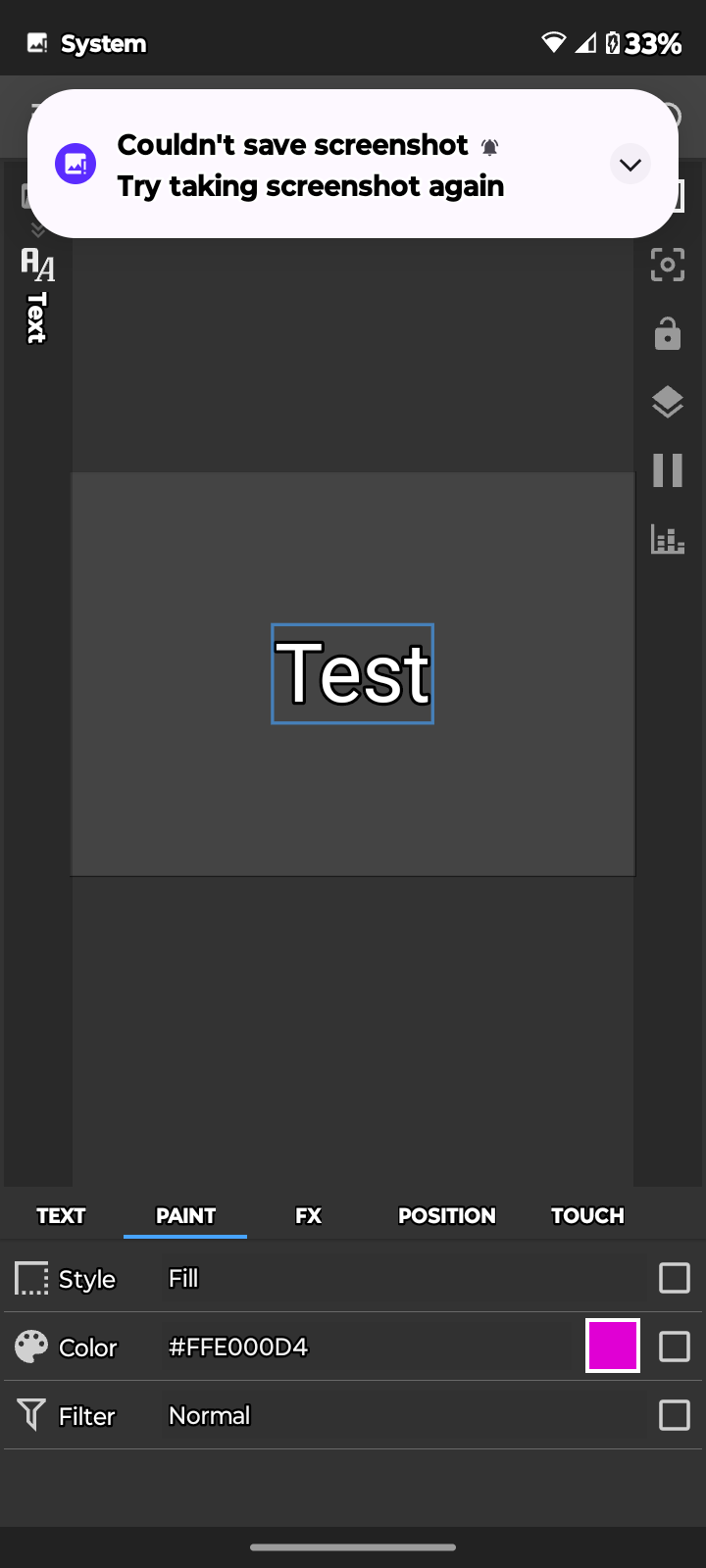
I don’t know what other app would be doing anything like that. Kustom is my only personalization all I have.
I’ve finally looked at your screenshot very closely, and it finally clicked! I see exactly what’s wrong. 
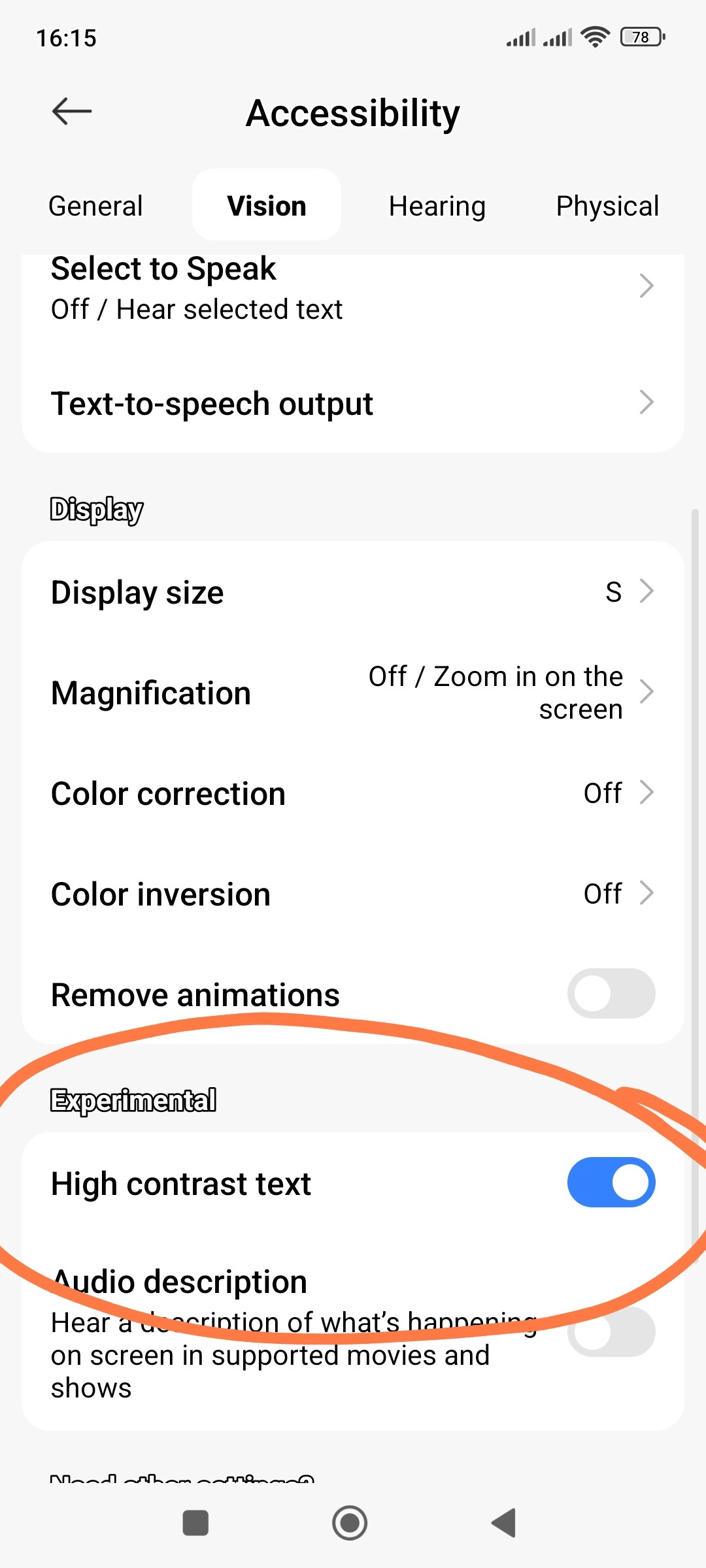
Notice that thin black outline around your white text? Kustom doesn’t do that, and neither does your font file. This is a 100% sign that you have a specific Android system setting turned on that overrides all app colors.
The culprit is ‘High Contrast Text’.So
Go to Settings → Additional Settings.
Tap on Accessibility.
Go to the Vision tab.
Scroll down and find ‘High contrast text’.
Turn it OFF.
This feature is designed for people with low vision; it forces all text to be white/black with an outline so it’s easier to read, but it completely ignores the colors you pick in KLWP. Once you disable it, your colors in the Paint tab will finally work as they
should.