I want to change the icons according to the battery status can you share how to do that. When my phone is full Material icon pack Battery full icon, While charging same pack charging icon, when I need charging these icons should off and from entypo pack plug icon need to appear how to approach this icon switching and pack switching thing if possible can any one share all these possible icons available outside icons i can use in a separate komponent type. Help me please
1 Like
Long story short: add the icons you want on seperate layers (making them overlap) and set each layers visibility depending on battery state with a formula.
Check out some tutorials (for instance Brandon Craft over on YouTube) on how to set layer visibility (which is fairly basic KWGT knowledge)
2 Likes
According to you, For each icon that I create should be created in a overlap group then in each overlap group layers visibility I need to add formula right, the problem is what formula should I have to use that make visibility changes according to the state. For example bi(charging) will return 0 or 1 according to the state on battery 0 on charging 1 if I apply this formula directly will not change anything showing both icons same time.
Not exactly sure what you mean, but put this in layer visibility:
$if(bi(charging)=1,always,remove)$
you can change 1 to 0 or switch always and remove in position on the other layer
2 Likes
Hi there,
Based on your description & your requirements, try my example .
NOTES
- Rename the downloaded file, remove the
.zipsuffix from the filename. - Move the renamed file (the .kwgt file) to the
widgetsfolder under your Kustom installation folder.
TUTORIAL
Overlap Group 1, this is for charging (on power) condition.
- Layer visibility (as formula):
$if(bi(charging)=1, Always, Never)$ - Icon: select a power plug icon
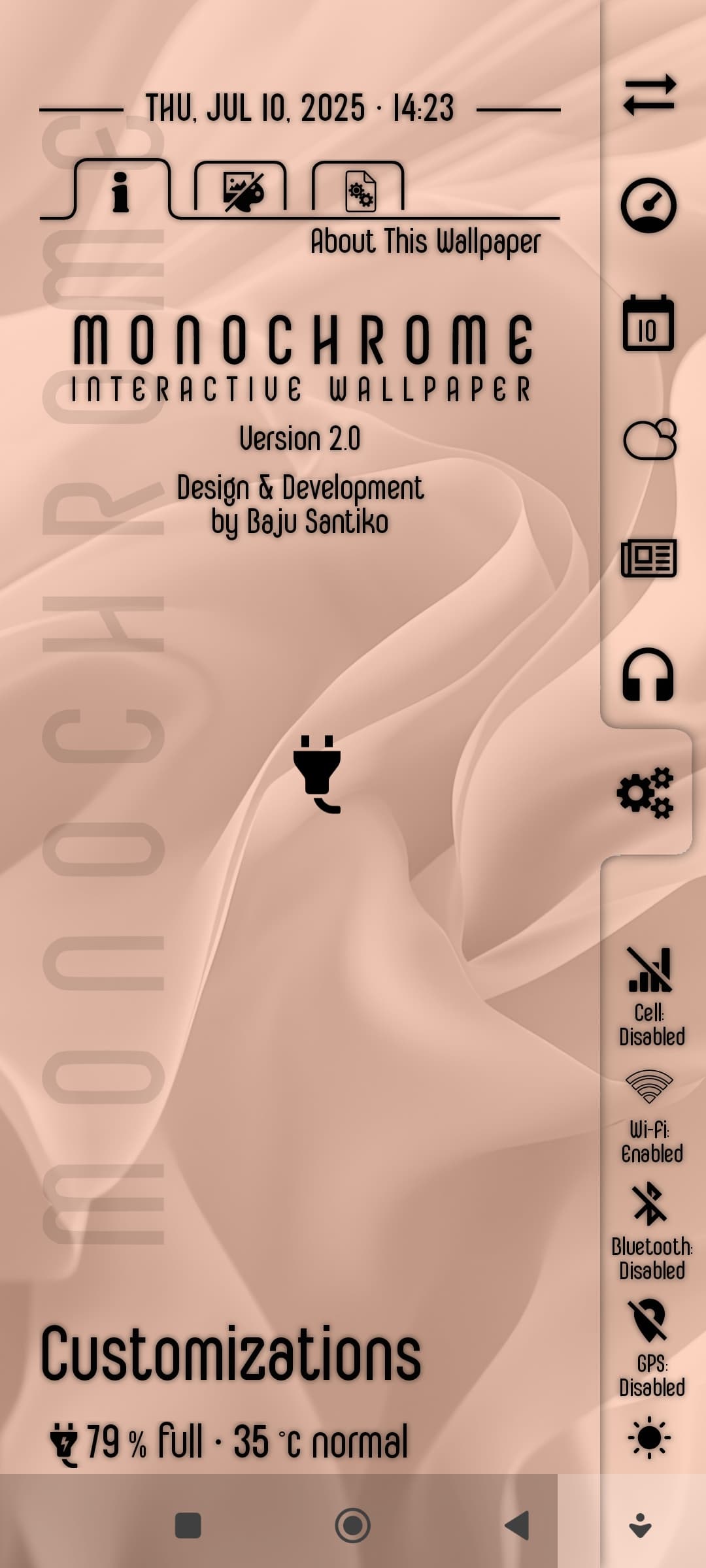
Overlap Group 2, this is for discharging (on battery) condition.
- Layer visibility (as formula):
$if(bi(charging)=0, Always, Never)$ - Icon: used as the battery outline ➞ select the battery_std and set the paint as stroke
- Progress: used as the battery juice ➞ ot will show the battery level as a progress bar
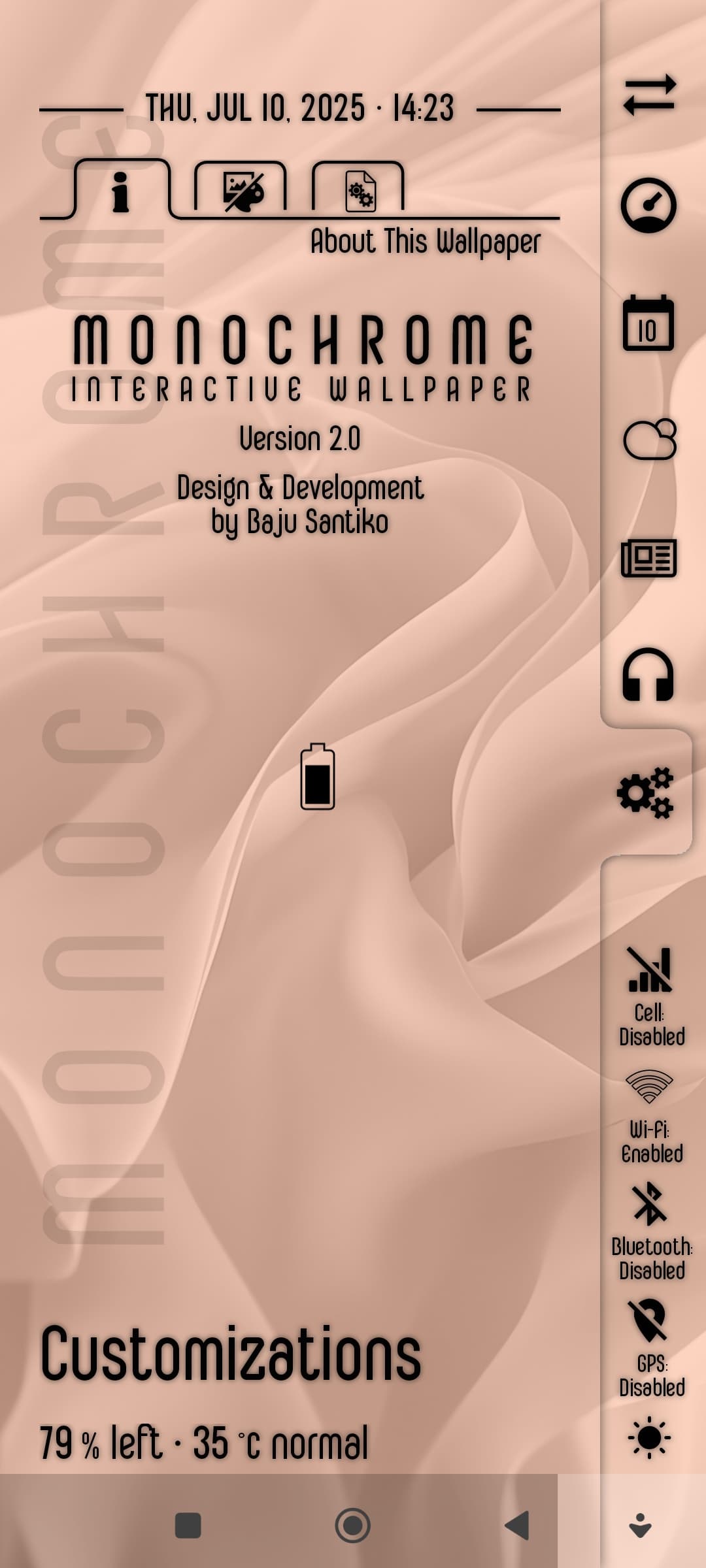
I hope this would help.


1 Like
Baju’s example is definitely the cleanest way to do this. Grouping them into Overlap Groups and using the layer visibility formula keeps your workspace so much more organized than trying to stack everything raw. If you’re still having trouble with the icons switching, just double-check that you don’t have a global variable overriding the visibility!